Cisco Secure Remote Worker: How to Optimize Your Remote Workforce

Remote and hybrid teams create real security gaps: laptops leave the office network, employees connect from home Wi-Fi routers nobody manages, and IT has limited visibility into any of it. The Cisco Secure Remote Worker approach addresses that gap with four coordinated pieces built to work together, not four unrelated tools. This page walks through what each piece does, how they fit together, and how to add a Meraki Teleworker Gateway when your team needs office-grade hardware at home too.
What Is Cisco Secure Remote Worker?
Cisco Secure Remote Worker is the name Cisco has used for its bundled approach to keeping remote employees connected and protected. It combines a managed VPN through Cisco Secure Client (formerly AnyConnect), multi-factor authentication, DNS-layer security, and endpoint protection into one coordinated setup, with an optional hardware layer for employees who need more than a laptop and a home router. Cisco's current web pages group the same building blocks under Secure Hybrid Work, so that's the name you'll find there today.
Instead of researching four separate vendors, you work with one vendor whose pieces are designed to fit together. Hummingbird Networks can step in at any point in that process, whether a team is starting from zero or already has two of these four pieces running through a different vendor.
For SMB IT teams, security isn't actually the main draw. It's not having to juggle several different vendor logins, renewal dates, and support numbers just to keep one employee's home setup covered. The sections below break down what each piece does on its own, then show how they work together.
Why This Matters for Remote and Hybrid Teams
Piecing together separate vendors for VPN, MFA, DNS security, and endpoint protection means a different login for every tool, a different renewal date to track, and more seams where something can quietly go unmanaged. A solo IT administrator ends up carrying all of that overhead personally, on top of everything else on their plate.
A coordinated setup closes those gaps by design, since every piece is built to work with the others instead of being bolted on separately. A remote employee doesn't have an office network to fall back on: a home router typically isn't screening traffic before it reaches their laptop, so any weak link in the chain lands directly on that one device.
The Four Pieces That Work Together
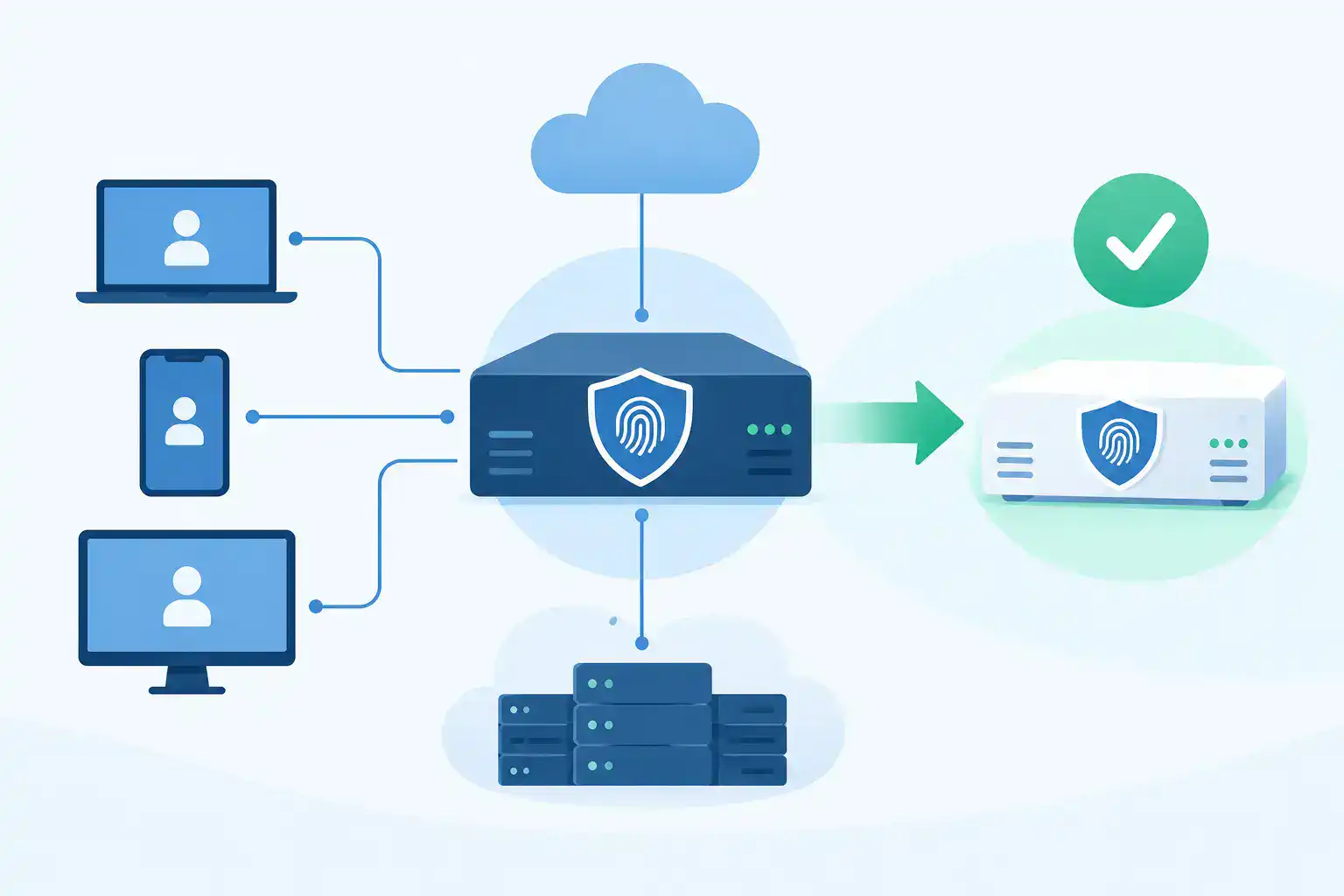
The four core pieces are a managed VPN, multi-factor authentication, DNS-layer filtering, and endpoint protection. Together, they cover the connection, the login, the destination, and the device itself, so a threat has to get past more than one layer to cause damage. Several of these pieces can run through a single Cisco Secure Client agent on the employee's device, which keeps the setup easier to manage.
None of the four pieces is optional in the sense of being nice-to-have, but few teams stand up all four in the same week, since MFA often lands first with the rest layered in as time allows. Each one gets its own section below.
Secure Access With Cisco Secure Client
Cisco Secure Client, formerly known as Cisco AnyConnect, is the first piece of Secure Remote Worker because everything else depends on a secure connection existing in the first place. It started as a VPN client and now does much more: a single agent on the employee's device combines VPN and zero trust access with additional security controls, and can add modules for endpoint protection and for protection that stays on when the employee is off the VPN. For a remote team, that means an encrypted, centrally managed connection back to company resources, no matter where employees are working from that day.
Unlike a basic consumer VPN app, Cisco Secure Client is deployed and managed centrally, so IT isn't maintaining a separate tool on every laptop. For a solo administrator, the real benefit is visibility. Instead of finding out about a problem from a help desk ticket, they can check connection activity in one central place, depending on how the deployment is set up. That visibility becomes even more valuable as a remote team grows beyond a handful of people.
What Cisco Secure Client Does
Cisco Secure Client creates a secure, encrypted tunnel between an employee's device and your network, so traffic passing between the two stays private even on an untrusted home or public Wi-Fi connection. Cisco now positions it as a single endpoint agent rather than only a VPN client: it supports zero trust network access, adds separately licensed modules for endpoint protection and for protection when an employee is off the VPN, and can give IT visibility into endpoint activity when paired with Cisco Secure Network Analytics.
Once set up, it runs quietly in the background and can reconnect automatically if the connection drops, so employees don't get locked out. IT can push configuration updates and policy changes to every connected device centrally, without visiting a single laptop in person.
Why a Managed VPN Beats a DIY Setup
A managed VPN gives you central visibility and policy control, instead of juggling individually configured client VPNs across every device. Offboarding is the clearest example: when someone leaves the company or a laptop goes missing, one administrator can cut off access centrally instead of hunting down a single login buried in a personal router's settings. It also means policy changes, like requiring a stronger password or blocking a specific destination, apply everywhere at once instead of needing to be repeated device by device. Hummingbird Networks' Meraki VPN setup guide covers client VPN options, including Cisco Secure Client, in more depth.
Confirm Identity With Cisco Duo
A secure connection alone doesn't stop someone from walking in the front door with a password they stole or guessed. Cisco Duo closes that gap by requiring a second proof of identity on top of Cisco Secure Client, so a password by itself is never enough to get in. Hummingbird Networks' guide to Cisco Duo covers how multi-factor authentication works in more depth, including what sets Duo apart from other MFA options.
It's also the piece that tends to sit on the back burner, since skipping it doesn't cause visible problems right up until the day it does. A stolen password is common; a stolen password plus access to a second factor is much harder to pull off, which is exactly the gap MFA is built to cover. A gradual rollout works fine too: pick one team to try it first, work out any friction with their specific apps and devices, then extend it once the process is routine.
Multi-Factor Authentication in Plain Terms
MFA asks for a second proof of identity beyond just a password, usually a tap on a phone app, a text code, or a hardware key. The idea is simple: even if a password leaks, whoever has it still can't get in without that second factor. Duo offers several of these options, so no one on the team is stuck with a single method that doesn't fit how they work. Many people are already used to this from their bank or email account, which makes adoption easier than it sounds.
Why MFA Is the First Thing to Get Right
Stolen credentials remain a common way attackers gain access: someone gets hold of a password, whether through a data leak, a phishing email, or a lucky guess, and simply gets in with it. MFA is what turns that moment from a full compromise into a dead end.
Turning it on is a licensing and configuration change, not a hardware purchase or a rebuild of the network layout, which makes it a small lift for how much risk it closes off. Once MFA is running, adding DNS filtering or endpoint protection on top can be a smaller step, since the identity question is already settled. Hummingbird Networks' look at network security trends for SMBs in 2026 also puts MFA first on its list of priorities for lean IT teams.
Filter Threats at the DNS Layer
Even with a secure connection and a confirmed identity, an employee can still click a bad link. DNS-layer security checks the address before the connection completes and refuses to return a route to domains known to be malicious, so nothing from that site ever has a chance to load.
A home setup typically doesn't have the equivalent of an office firewall screening traffic before it ever reaches an employee's laptop. That gap matters most for something like a phishing email, which an office network might catch but a home connection may not. It's a quiet, mostly invisible layer of protection, which is part of why it's easy to overlook when planning a remote security setup.
How DNS-Layer Security Fits In
Think of DNS-layer filtering as the checkpoint between the VPN and endpoint protection, catching bad destinations before traffic ever gets that far. It doesn't replace either. Instead, it works alongside them, covering a gap neither one is built to catch on its own. Because it acts before a page ever loads, it also reduces the load on endpoint protection, which only has to deal with threats that make it past this earlier check.
Stopping Threats Before They Reach the Device
A phishing link to a known malicious domain gets blocked at the domain level, before the browser even finishes loading the page, so the employee never sees the fake login form in the first place. The same protection applies to malware download sites and command-and-control domains that compromised devices try to reach. In each of those cases, the destination never loads, so there's no fake form, no download prompt, and no page for anyone to second-guess after the fact.
Protect the Device Itself With Endpoint Security
A secure connection, a verified identity, and DNS-layer filtering cover a lot of ground, but they're all watching the network path, and not every risk travels that way. A malicious attachment that slips past the DNS check still has to be caught once it lands on the laptop, and a compromised removable drive or a device that gets physically lost or stolen never touches the network at all.
Endpoint security is what's left standing in both cases, whether the threat got through the earlier layers or bypassed them entirely. Hummingbird Networks' breakdown of the Gartner Magic Quadrant for endpoint security explains what that ranking does and doesn't tell a buyer. Beyond any ranking, a strong endpoint tool catches unusual behavior instead of only known threats, handles remote wipe and encryption cleanly, and doesn't slow a device down day to day.
Many teams already have some antivirus or endpoint tool running, and naming one specific product here would mean asking a chunk of readers to rip out something that already works just to match this page. Endpoint security also changes quickly, so a specific pick made today could be the wrong one within a year.
That's why this section points to a framework instead of a product; it holds up regardless of which vendor a team already runs or picks next. What matters is having some form of endpoint protection in place and checking it against real criteria, not the logo.
What Endpoint Protection Covers
At minimum, a good endpoint tool should scan for malware, encrypt the device's storage, and remotely wipe a lost or stolen laptop before it becomes a bigger problem. Better tools add a behavioral layer on top: instead of only checking a file against a list of known threats, they flag a device doing something it's never done before, like suddenly encrypting large batches of files or reaching out to an unfamiliar server. Encryption matters especially for remote work, since a lost laptop with an unencrypted hard drive can expose company data even if nothing else about the setup was compromised.
Why Remote Devices Need Extra Attention
An office has other eyes on it: unusual network traffic can get noticed quickly, and an IT team can walk over and take a look. A device working from someone's kitchen table doesn't have that backup. With no one else positioned to catch something early, whatever protection exists has to live directly on that one laptop.
Add Reliable Hardware With the Meraki Teleworker Gateway
Software covers identity, traffic, and device protection, but none of it can fix a home router that was never built to prioritize a work VPN connection over everything else competing for bandwidth in the house. For a remote employee who needs office-grade reliability at home, a dedicated Meraki Teleworker Gateway adds a hardware layer on top of everything covered so far. The Meraki Z-Series is Meraki's line of cloud-managed teleworker gateways, and it fits into a broader Meraki-managed network.
A Teleworker Gateway becomes worth considering the moment contention shows up as dropped calls, a VPN connection that keeps reconnecting, or a home office at the far end of the house from the router. Not every remote worker needs it on day one. The next few sections cover choosing between the two current models, when it makes sense to keep a unit your team already owns, and whether paying extra for a cellular backup connection is worth it for a given role.
What a Teleworker Gateway Actually Does
A Teleworker Gateway is dedicated hardware built for exactly one job: securing and managing a single remote worker's connection the same way an office network handles a whole building. It shows up as an entry in the Meraki dashboard alongside other Meraki devices, rather than a separate device managed on its own. That's what lets IT manage the device and look into connectivity complaints remotely instead of driving to someone's house or waiting for them to plug in a replacement themselves.
Meraki Z4 and Z4C: Wi-Fi 6 for Modern Remote Work
As Meraki's current teleworker gateway line, the Z4 delivers Wi-Fi 6 and 500 Mbps of firewall throughput, suited to everyday remote work like video calls, file transfers, and browsing. The Z4C adds cellular failover on top of the same specs, automatically switching to a cellular connection if the home internet connection drops, as long as an active carrier SIM card is installed. For any team buying new today, these are the two models to choose from.
Meraki Z3 and Z3C: What to Know If You Already Have One
The Z3 and Z3C have been replaced by the Z4 and Z4C and are past Meraki's end-of-sale date, so they're no longer a new-purchase option as of this writing. A unit already in service keeps running under active support through 2029, so age alone isn't a reason to swap it out. For a new order, though, the Z4 and Z4C above are the current models, and they're the ones recommended for any first-time purchase.
When Cellular Failover Is Worth It
The honest way to think about cellular failover is in dollars, not features: what would an hour of dropped connectivity actually cost this specific role: a missed client call, a point-of-sale system going dark mid-transaction? For an employee whose job doesn't depend on being reachable every minute, the base model without failover is usually enough. The right call comes down to how much a few hours of downtime would actually cost, not how it sounds on paper.
How This Combination Optimizes, Not Just Secures, Remote Work
Each piece covered so far closes a specific security gap, but together they also make remote work easier to manage day-to-day. That's the part that's easy to miss if you're thinking of this only as a security project. A coordinated setup doesn't just reduce risk. It also reduces the everyday friction of managing a distributed team.
In practice, that shows up in three places covered next: how often the help desk phone actually rings, how consistent the connection feels no matter where someone logs in, and how much a solo administrator can see without hunting across several different tools. None of these benefits require any extra purchase beyond what's already been covered on this page. They're simply what happens once the four software pieces, and where needed, the hardware, are all working together instead of separately.
Fewer Help Desk Tickets
One coordinated setup can mean fewer "I can't connect" calls than several separate tools that don't talk to each other. When something does go wrong, there are fewer systems to check, which cuts down the time it takes to fix it. Over time, that adds up to real hours back for whoever handles IT support.
Consistent Experience No Matter Where Someone Logs In
The connection experience stays consistent whether someone's at home, at a co-working space, or on the road, since the same managed client handles the connection each time. That consistency matters for video calls and other real-time work, where a dropped or laggy connection is immediately obvious. Employees also don't need to remember different settings for different places, since the same managed connection follows them.
Fewer Places to Check for IT Visibility
A solo administrator gets a much shorter list of places to check: Cisco Secure Client for connection and endpoint status, Duo for MFA activity, and the Meraki dashboard for any Teleworker Gateway hardware, rather than a separate portal for every tool. That shorter list makes it much easier to spot a problem early, before it becomes a support ticket or a security incident. For a team of one, that alone is worth something: fewer tabs open, fewer passwords to remember, fewer places a problem can hide.
Choosing the Right Setup for Your Team
You don't need to roll out all four pieces in the same week, or even the same quarter. A practical starting point depends mostly on team size and how distributed the team already is. The guidance below is meant as a starting point, not a strict rule, since every team's situation looks a little different.
For most teams, the right order is to start with identity and work outward from there, adding hardware only once the software pieces are in place. The next three sections cover that progression for a few common team shapes. An account manager can help pressure-test that sequence against whatever a team already has running.
Solo Remote Workers and Small Teams
The four software pieces, VPN, MFA, DNS security, and endpoint protection, can cover a handful of remote employees on their own long before hardware enters the conversation. A Teleworker Gateway becomes worth considering once a team member's home setup is clearly affecting their ability to work reliably. Below that point, those four pieces are usually covering most of what is needed.
Multi-Site or Larger Distributed Teams
Multiply that reliability question across 10 or 50 remote employees, and the case for one standard gateway model gets much stronger: five unmanaged home networks, each behaving a little differently, are much harder to support than five identical ones IT already knows how to handle. That gap only widens as headcount grows, since every new hire on a mismatched setup adds another exception to track. Standardizing on the same hardware across the team also speeds up troubleshooting, since every device behaves the same way.
When to Loop In Your Account Manager
Licensing and model choice move faster with a quick conversation instead of guessing alone, especially once a team mixes software-only setups with hardware for some employees. Actual licensing needs may vary based on deployment size and features used.
Confirm the specifics before committing to a configuration. Bringing an account manager in early also helps sequence the rollout correctly the first time, instead of reshuffling it after something's already deployed.
FAQs
What Is Cisco Secure Remote Worker?
It's the name Cisco has used for its bundled approach to remote work security: a managed VPN, multi-factor authentication, DNS-layer filtering, and endpoint protection working together, with an optional Teleworker Gateway for hardware-level reliability. It's built so a team doesn't need to research four separate vendors. Teams often bring the four pieces in gradually rather than switching everything on at once.
Do I Need All Four Pieces to Get Started?
No. Many teams start with multi-factor authentication, since it closes a common gap for relatively little setup effort, then add the rest over time. There's no requirement to deploy everything at once, and gradual rollout often makes each step easier to manage. Where to start really depends on what a team is already running today.
How Much Does This Cost?
Pricing may vary by model, license level, and active promotions. No single number applies to every team. A quick conversation with an account manager gets you an accurate number faster than piecing it together from public pricing alone. A team starting from scratch and a team adding one missing piece will land in very different places.
Is a Teleworker Gateway Different From a Regular Router?
Yes. A consumer router is configured once and mostly left alone; a Teleworker Gateway shows up in the Meraki dashboard, so it can be managed centrally instead of through a separate setup process. It's purpose-built for that kind of oversight from day one, not a home device pressed into a business role.
Can This Scale as My Team Grows?
Yes. Adding a new remote employee means adding one more license and, if needed, one more gateway, not rebuilding the setup from scratch. Licensing typically scales with the number of users or devices. Hardware follows the same logic: add a gateway only for the employees who need one.
Get Your Remote Team Set Up Right
You don't need to solve everything at once. Start with identity, add the pieces that fit your team's setup, and let the rest follow as you grow. The teams that get the most out of this usually knock out one piece, let it settle in, then move to the next, rather than trying to check every box before calling it done. Hummingbird Networks' remote work articles cover more of these decisions in depth.
Curious which Meraki Teleworker Gateway fits your team? Contact Hummingbird Networks to talk through your setup with an account manager before you decide.