WiFi Range Tips for Improving Your Signal Range

Table of Contents
- Why Real-World Wi-Fi Range Never Matches the Box
- Hardware Reality: Access Points Aren’t Designed to Cover Everything Alone
- Table: What Affects Wireless Access Point Range the Most?
- How to Estimate the Real Range of Your APs
- How to Improve Wireless Access Point Range
- Checklist: Are Your Access Points Placed Correctly?
- When It Makes Sense to Bring in a Wireless Expert
- Strong Wi-Fi Starts With Understanding Your Real Environment
- FAQs
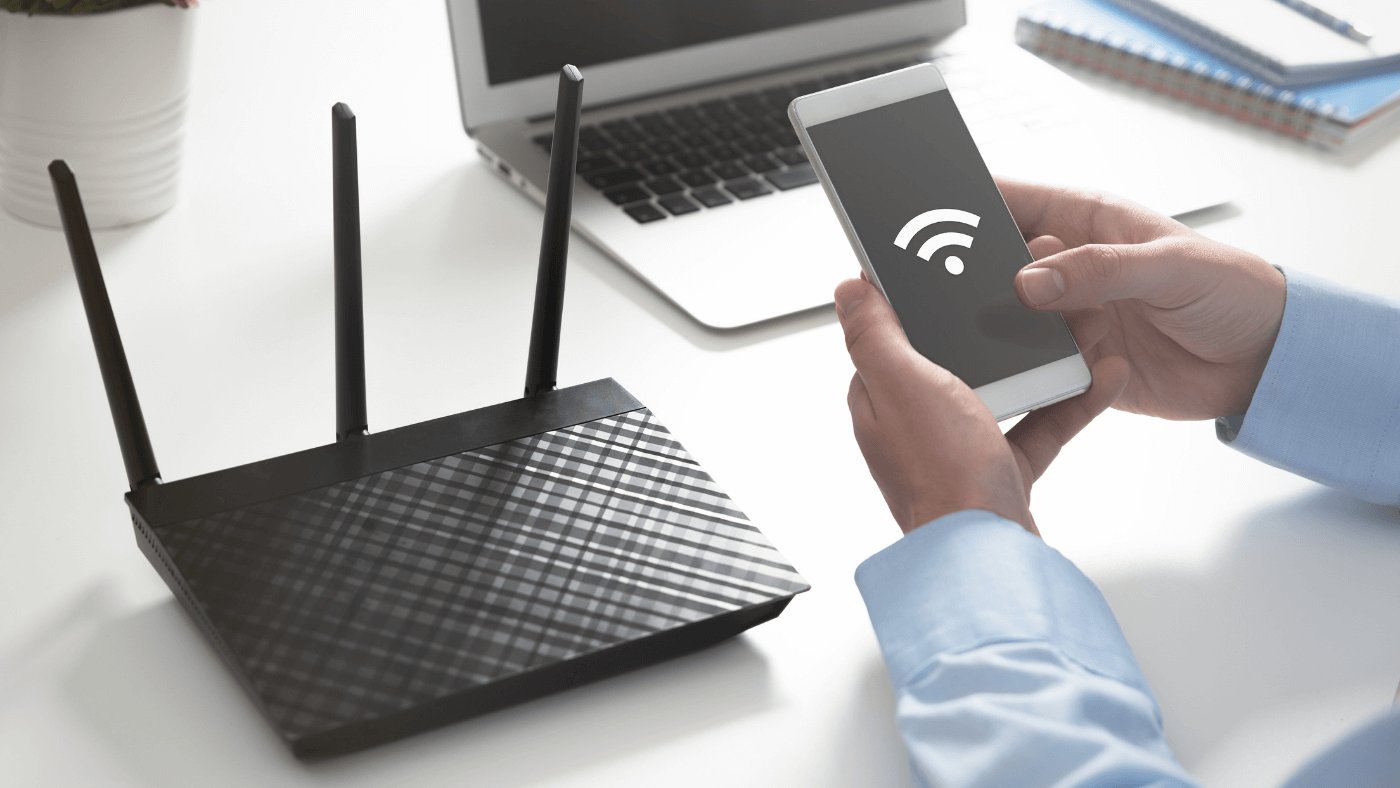
Manufacturers test APs in clean-room environments with no interference, no obstacles, and no competing broadcasts. Those lab results don’t match what happens inside an SMB office with drywall, glass, concrete, Bluetooth devices, microwaves, cordless phones, and dozens of laptops trying to connect at the same time.
That doesn’t mean strong coverage is out of reach. It simply means businesses need a grounded understanding of how range actually behaves — and how to design around it.
This guide explains what affects wireless access point range, how to estimate real-world coverage, and practical steps to improve performance without overspending.
Why Real-World Wi-Fi Range Never Matches the Box
Every AP broadcasts radio waves. Anything that absorbs, reflects, or distorts those waves reduces the usable range. The challenge isn’t the AP — it’s the environment.
Here are the biggest range-killers you’ll see in typical offices:
Thick walls, especially concrete or walls with metal studs
Glass partitions
Water (fish tanks, pipes, plumbing walls)
Metal objects, sheet metal, server racks
Dense furniture layouts
Neighboring Wi-Fi networks
Bluetooth devices and cordless phones
High device density in a small footprint
Even the orientation of the AP can change signal behavior. That’s why the “claimed range” is a theoretical limit, not a realistic expectation.
Hardware Reality: Access Points Aren’t Designed to Cover Everything Alone
This next WiFi range tips says that modern wireless deployments depend on multiple access points, not one AP pushed too hard. Trying to stretch one AP across an entire floor leads to:
Weak throughput
Dropped connections
Client roaming issues
Dead zones
Poor performance during peak hours
Distributed APs with clean handoff and proper placement solve these issues before they become helpdesk tickets.
Table: What Affects Wireless Access Point Range the Most?
WiFi range tips in a grounded comparison your team can use when planning placement:
| Factor | Impact on Range | Typical Severity | Notes |
|---|---|---|---|
| Walls & Physical Barriers | Absorb or block signals | High | Concrete, metal, and brick cause the worst loss |
| Interference from Other Devices | Competes with Wi-Fi frequencies | Medium–High | Bluetooth, microwaves, cordless phones, neighboring APs |
| AP Power & Antenna Type | Affects coverage footprint | Medium | Higher power ≠ better; often creates noise |
| AP Placement | Influences coverage uniformity | High | APs in corners or closets deliver poor range |
| Device Density | More users = more contention | High | Common problem in conference rooms |
| AP Orientation | Changes signal directionality | Low–Medium | Ceiling-mounted APs usually offer best patterns |
How to Estimate the Real Range of Your APs
Even if you’re not running a formal site survey, you can get a surprisingly accurate understanding of how your APs behave in your unique environment.
1. Run a DIY Wi-Fi Range Survey
Free apps exist for Windows, iOS, and Android that map signal strength as you walk through your space. These apps measure:
RSSI (signal strength)
AP channel usage
Interference
Dead zones
Within minutes, you’ll see where coverage dips or where signals overlap too much.
2. Consider a Professional Wireless Site Survey
When accuracy matters — especially for larger offices or warehouses — professional surveys provide:
Heatmaps over your actual floor plan
Real interference data
AP placement recommendations
Signal overlap and roaming analysis
This is the most reliable path to eliminating surprises after installation.
How to Improve Wireless Access Point Range
Once you understand your signal behavior, the next step is tuning your environment. These proven strategies help businesses get better coverage without guessing.
1. Move APs Away From Interference Sources
Interference isn’t always obvious. The devices causing the biggest problems often aren’t Wi-Fi equipment.
Common culprits include:
Microwave ovens
Wireless headsets
Bluetooth devices
Security cameras
Wireless speakers
Adjusting placement or switching channels helps reclaim coverage.
2. Avoid Mounting APs Near Signal Blockers
Certain materials stop Wi-Fi cold:
Concrete walls
Sheet metal
Elevator shafts
Large filing cabinets
Water features
Stacked storage rooms
APs perform best when mounted high, in open areas, on ceilings or central locations — not tucked into corners or network closets.
3. Optimize Your Channel Selection
Wi-Fi networks often collide with each other. Choosing the wrong channel leads to interference and reduced range.
Channel tips:
Use non-overlapping channels (1, 6, 11 for 2.4 GHz)
Use auto-RF optimization when available
Reduce channel width if the environment is noisy
Avoid congested channels used by neighboring networks
Small changes here often lead to massive improvements.
4. Add Additional APs Instead of Cranking Up Power
Many businesses try increasing transmit power to “push” signal farther. This usually backfires. It creates noise, disrupts roaming, and causes devices to cling to weak APs.
A better approach:
Add more APs
Use proper spacing
Maintain line-of-sight between APs in open spaces
Ensure overlapping coverage is moderate, not excessive
Coverage is about quality, not sheer distance.
5. Consider External Antennas or Mesh Solutions When Needed
Some environments benefit from non-standard configurations:
High-gain antennas for directional coverage
Mesh repeaters in irregular floor plans
Outdoor APs for open-air spaces
Sector antennas in long hallways or warehouses
These aren’t one-size-fits-all fixes, but they solve specific architectural challenges.
Checklist: Are Your Access Points Placed Correctly?
Use this quick list to evaluate your current setup:
AP is ceiling-mounted, not hidden behind objects
AP has clear space around it
AP is not next to major metal surfaces
AP is not mounted inside a closet or cabinet
Channels are selected intentionally, not default
Signal overlap between APs is controlled
High-density areas have dedicated APs
Power settings are balanced across the network
If several of these items raise concerns, your coverage issues aren’t caused by the AP model — they’re caused by placement or configuration.
When It Makes Sense to Bring in a Wireless Expert
Designing Wi-Fi isn’t about chasing “maximum range.” It’s about delivering predictable, stable coverage everywhere your team works. A professional wireless designer uses measurement tools, real RF modeling, and layout expertise to determine the exact AP count and placement needed for your building.
This avoids:
Overbuying APs
Under-deploying APs
Bottlenecks
Dead spots
Costly redesigns later
For SMBs, getting the design right the first time typically saves far more than it costs.
Strong Wi-Fi Starts With Understanding Your Real Environment
No access point performs the way its box claims once it enters a real office. That’s not a failure — it’s simply how radio waves behave. When you understand what affects range and how to adjust for it, you gain far more control over performance than most organizations realize.
If you want help laying out a Wi-Fi network that’s fast, stable, and cost-efficient, the Hummingbird Networks team can walk you through your options and map out an approach grounded in real-world data — not guesswork.
FAQs
Why doesn’t my access point reach the range advertised on the box?
Manufacturers test APs in interference-free environments. Real offices have walls, metal, glass, people, and competing signals, all of which reduce range. The listed range is a theoretical maximum, not a real-world number.
What affects Wi-Fi range the most in an office?
Physical barriers (concrete, metal, glass), interference from nearby devices, AP placement, device density, and channel selection all influence coverage. Even small layout changes can noticeably impact performance.